
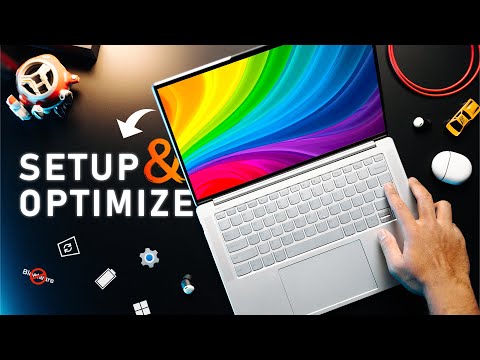
Doing the initial setup and optimization for a laptop has changed a lot since Windows 11 was released. So we’ve decided to update our setup & optimization guide with Windows 11 tips & tricks that should help get the best gaming performance and battery life from a laptop in 2023.
Check out the Slim 7i ProX –
LINKS:
Media Player Classic –
WinDirStat –
MalwareBytes –
Everything –
MS Memory Integrity –
Restore old Context Menu in Windows 11
Right-click the Start button and choose Windows Terminal.
Copy & paste command below and press enter:
reg.exe add “HKCUSoftwareClassesCLSID{86ca1aa0-34aa-4e8b-a509-50c905bae2a2}InprocServer32” /f /ve
TIMESTAMPS:
0:00 – The Windows 11 Challenge
0:47 – Meet the Slim 7i Pro X
1:33 – The Bloatware Cleanup
2:57 – The Windows 11 Setup
4:35 – Startup Optimizations & Pointers
5:47 – Storage Sense is IMPORTANT
6:23 – Notifications & Desktop Icons
7:30 – Everything, no Really, Get Everything
7:55 – Disk Cleanup is Better than you Think
8:17 – Understanding Power Modes
10:06 – Drivers & Gaming Optimizations
11:22- More Battery Life Tips & Tricks
12:09 – BONUS TIPS!
Buy items in this video from Amazon at the links below:
GET MERCH ►
SUBSCRIBE ►
This video is sponsored by Lenovo. As an Amazon Associate we earn from qualifying purchases.
Follow us for more updates!
Twitter
FaceBook
Instagram
—————————————-————————
#hardwarecanucks
my sisters laptop was i thnk almost 200 dollars but it keeps saying that it has no space why?
thanks alot
This video was so helpful
Thanks a lot
Install Winhance and have all tweaks in one program rather than this method.